

It can often be useful for instructors and course designers to impersonate a student role so they can see the course as students will see it and verify content is available or hidden as intended.
Steps
- Open the course you want to view as a student
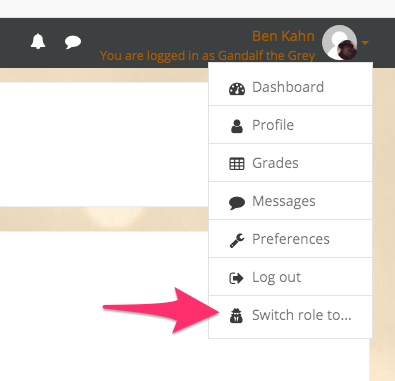
- Click on your username in the upper right corner and click Switch role to.
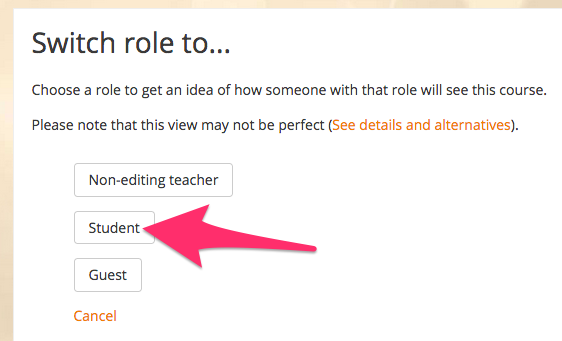
- Select the role you want to impersonate (usually Student). You will now be seeing the course like a student sees the course.
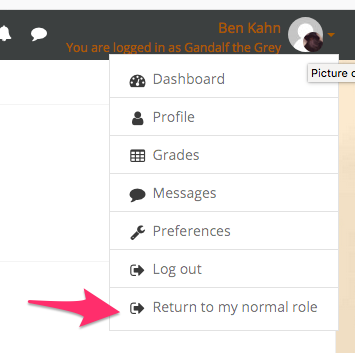
- To switch back to your usual role, click on your username again and click Return to my normal role.
FAQs
No FAQs yet. Use the comment field below to ask questions.
Last Update: September 18, 2023
