

Adding a banner to your course homepage can help "anchor" the page. It also makes your course look welcoming and professional. There are two main ways to add a banner to your main course page in Moodle. The first method (covered in the first video) is easier, but less flexible. The second method (covered in the second video and the text instructions) involves more steps, but it is also more flexible. See the screenshots below for 3 different examples of banners created using the second method.
this text will be removed

Tips
Although it involves more steps, the second method of adding a banner is better for accessibility because the text is on the page rather than in an image, which can’t be read by screen readers. Making a banner this way also allows for greater flexibility.
this text will be removed

Reminder
Make sure to Turn editing on before getting started with this guide.
Video Overview: Method 1 (adding a banner as a picture)
Video Overview: Method 2 (adding a banner using the html editor)
Part
1
1
Add the image(s)
- Find or create any graphics you want to be in your banner. Check out pixabay.com for free, high-quality photos and clip-art you can use (this is where I got the images used in my 3 example banners). Note that you’ll want to choose an image with a transparent background for example A.
- On the main page of your Moodle course, select Edit section from the "Edit" drop-down for the main section.
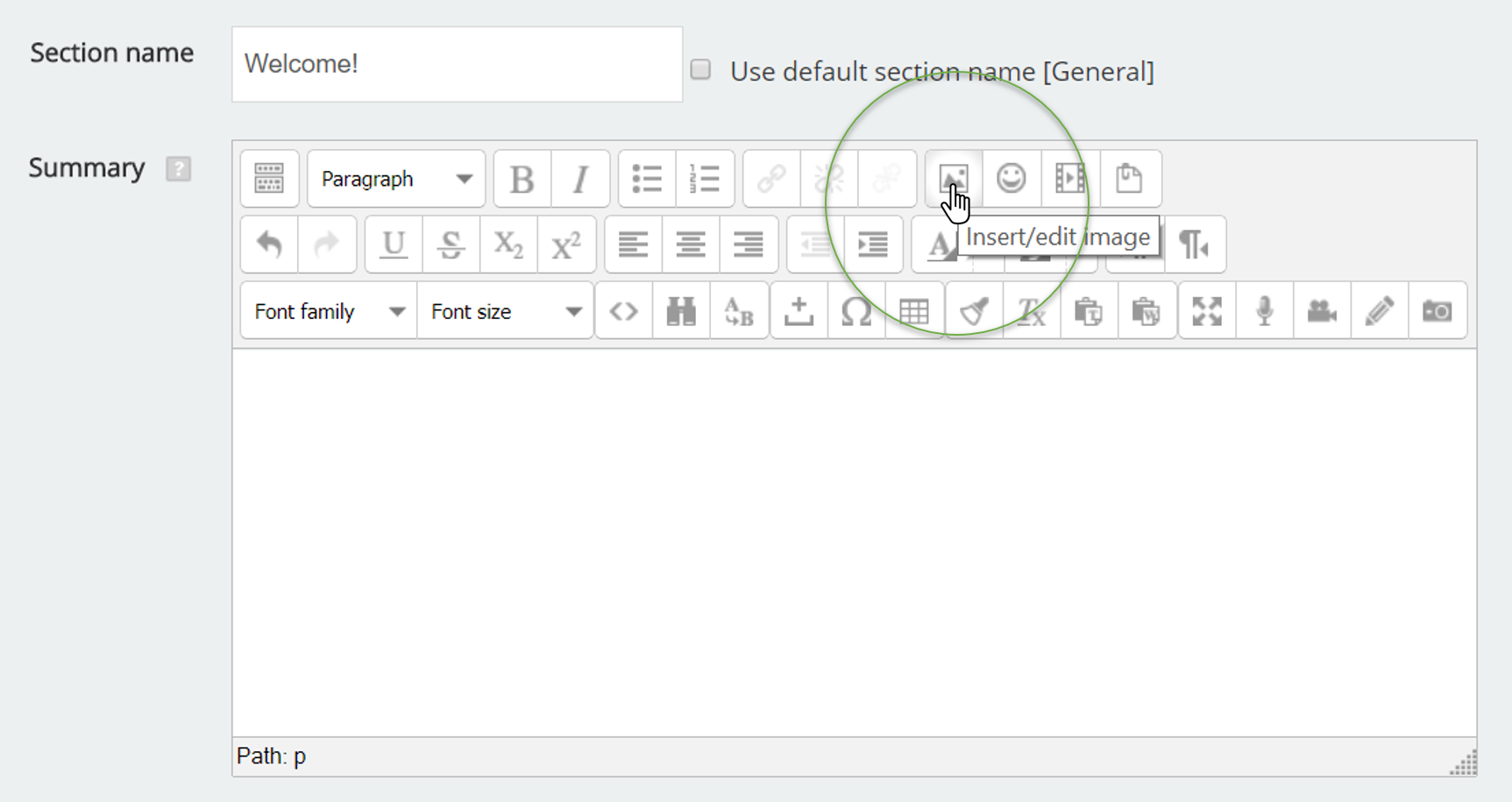
- In the summary area, click the picture icon.
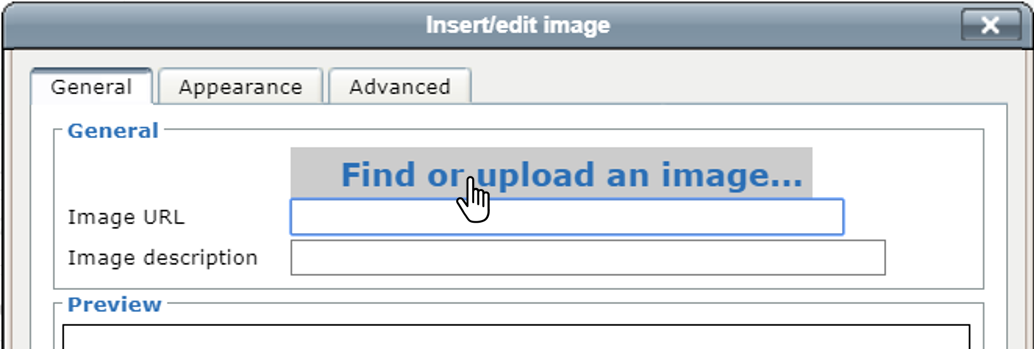
- Click Find or upload an image.
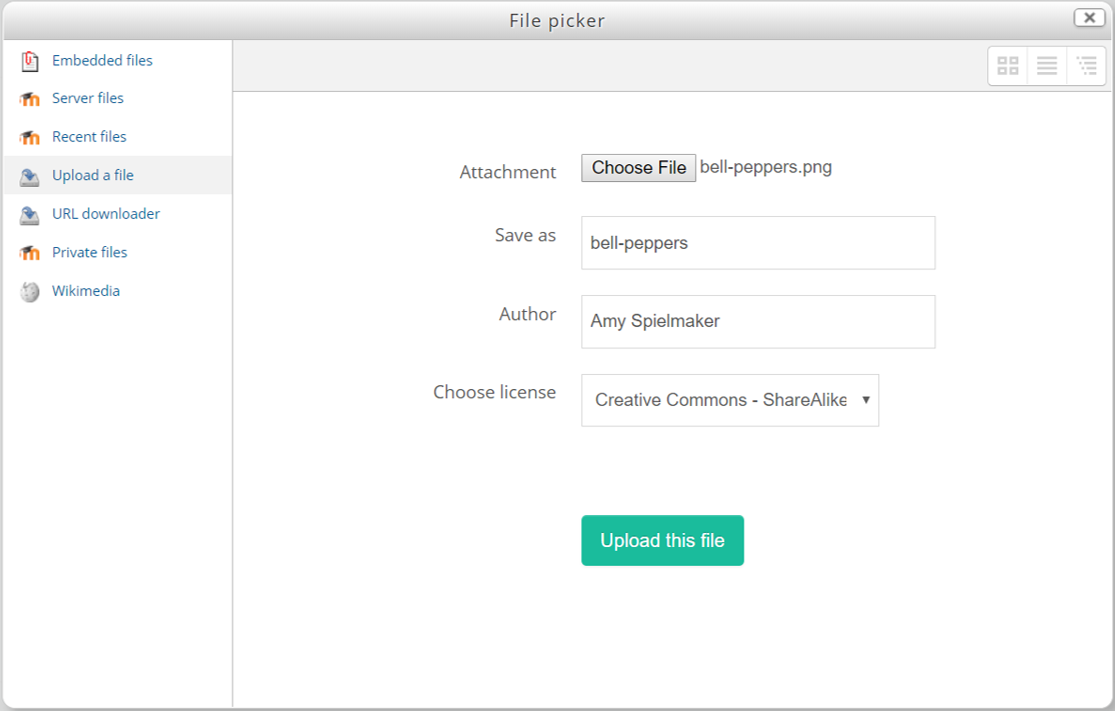
- In the file picker, make sure you are in the "Upload a file" area. Click Choose file and select the image you saved in step 1. Enter a name in the "Save as" field and click Upload this file.
- In the dialog box that opens, enter alt text (a short description of what is shown in the picture) and click Insert.
Part
2
2
Add code
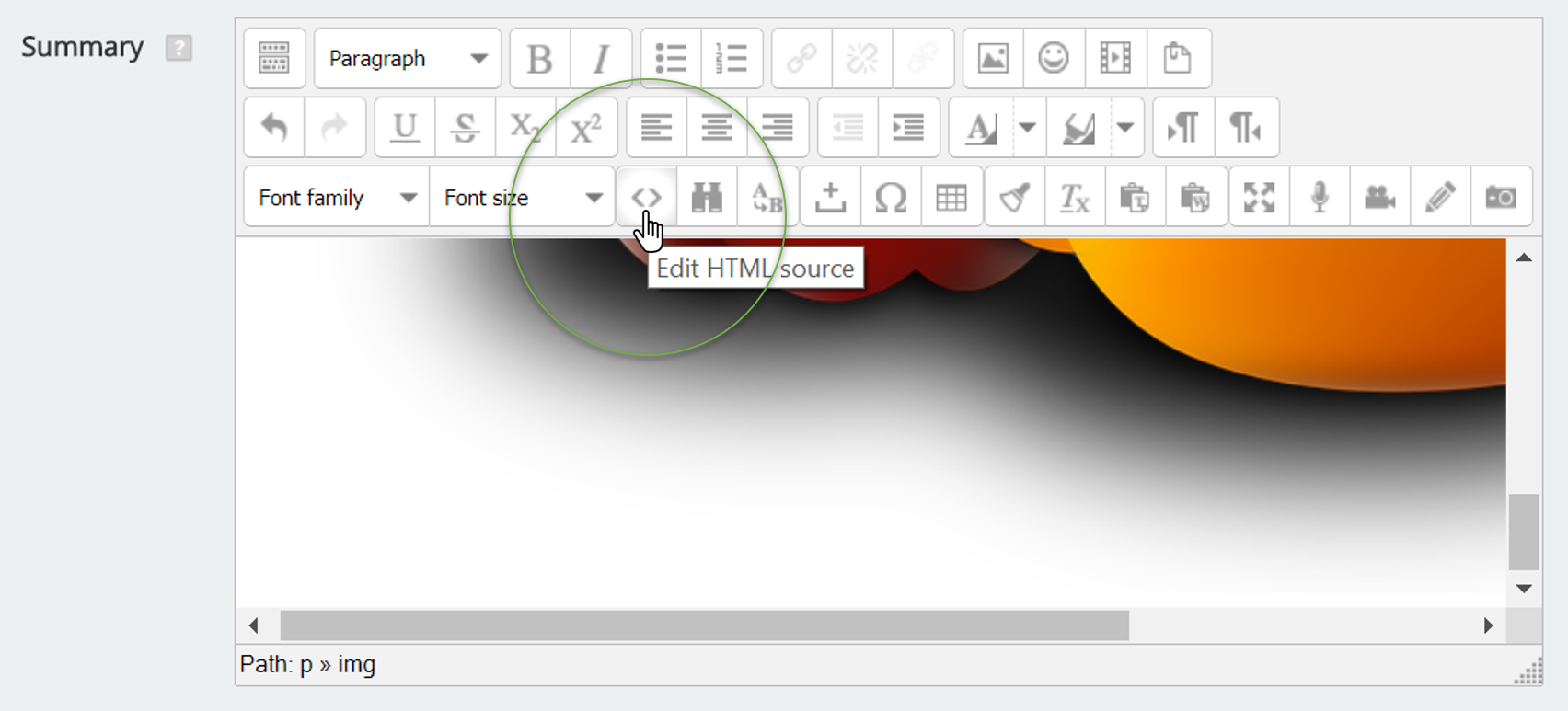
- Click the code icon to access the html editor (you may have to click the toolbar toggle in the upper left to see the html editor icon).
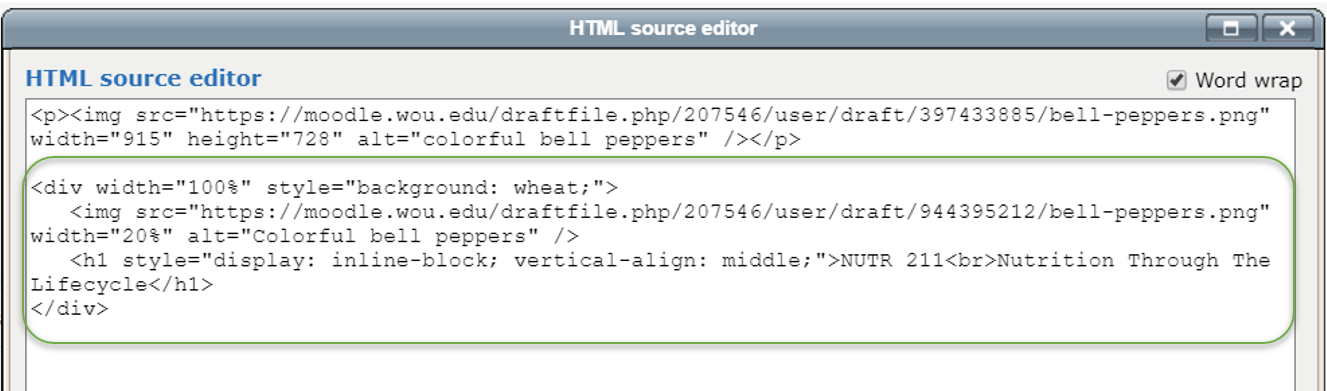
- In the html editor, copy and paste the code shown at the end of this guide (you can just paste it underneath the code that is already in the html editor).
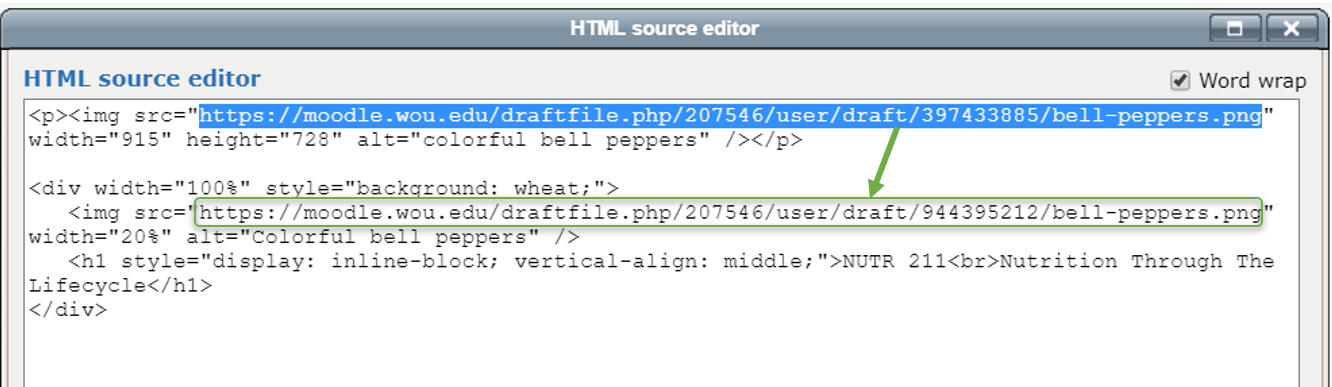
- Replace the image url from the code you just pasted with the url of the image you inserted in part 1 (just copy and paste it). In the screenshot below, my image url is the same as the one in the example, but your image url will be different. Also replace the title with your course's title. The parts you'll want to replace are highlighted in yellow in the code.
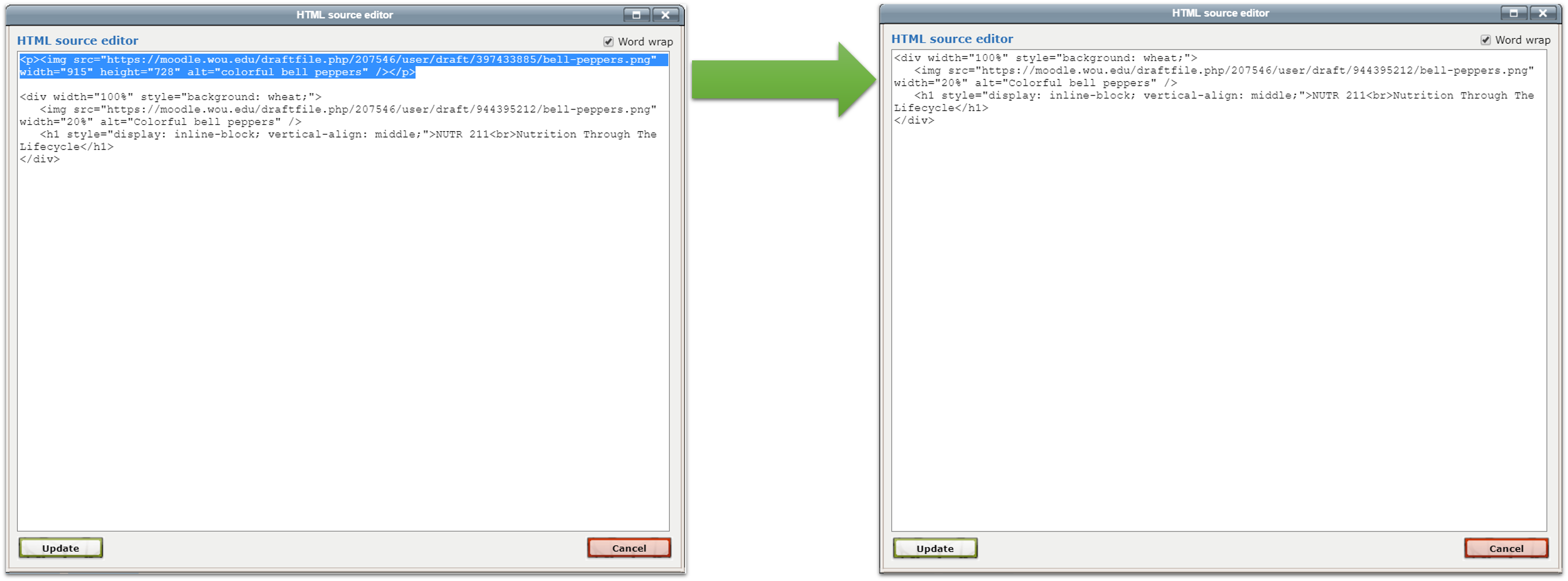
- Once you've updated the image url and course title, you can delete the code that was already in the html editor when you opened it.
- Click Update in the html editor and then Save changes.
Code for Example A:
<div width="100%" style="background: wheat;">
   <img src="https://moodle.wou.edu/draftfile.php/207546/user/draft/944395212/bell-peppers.png" width="20%" alt="Colorful bell peppers" />
   <h1 style="display: inline-block; vertical-align: middle;">NUTR 211<br>Nutrition Through The Lifecycle</h1>
</div>
Code for Example B:
<div width="100%" style="padding: 5%; border: 1px solid gray;">
   <img src="https://moodle.wou.edu/pluginfile.php/292348/course/section/59494/human-lifecycle.jpg" width="40%" alt="A woman going from baby to senior" />
<h1 style="display: inline-block;">NUTR 211<br>Nutrition Through The Lifecycle</h1>
</div>
Code for Example C:
<div width="100%" style="padding: 5%;  background: url('https://moodle.wou.edu/pluginfile.php/292348/course/section/59494/cutting-board-veggies.jpg') no-repeat right bottom;">
   <h1 style="background: rgba(255,255,255,0.8); padding: 1%; text-align: center;  margin: 0 auto; display: table;">NUTR 211<br>Nutrition Through The Lifecycle</h1>
</div>
FAQs
What do the different code parts mean?
| Code | Meaning |
|---|---|
| alt= | This is where you enter alt (alternative) text for your image so screen readers can “explain” the image. |
| background: rgba(255,255,255,0.8) | RGBA color values are an extension of RGB color values with an alpha channel - which specifies the opacity for a color. In our example, the first three numbers (255,255,255) set the background color to white and the last number (0.8) makes it slightly transparent. |
| background: url('imageURL') no-repeat right bottom | Puts an image into the background of our banner. The “no-repeat” part indicates that we only want the image to appear once while the “right bottom” part says where we want the image to be positioned. Learn about other positioning options. |
| background: wheat | Sets the background of our banner to the color “wheat.” See a list of other color options. |
| border: 1px solid gray | Adds a border. The first value (1px) is the border width, the second value (solid) is the border style, and the third value (gray) is the border color. See more border styles. |
| br | A line break. |
| display: inline-block | Tells the element to allow other elements on the same line. |
| display: table | Tells the element to display like a table. In our example, this allows us to prevent the semi-transparent white background from being its full width. |
| div | A div is like a container – it’s the container for our banner. |
| div | A div is like a container – it’s the container for our banner. |
| h1 | Indicates a top-level heading (heading 1). This will make the text bigger and add some margin. |
| img src= | The image tag indicates we are about to add an image and the src= part says where to find the image (the url in our case). |
| margin: 0 auto | The first value (0) sets the top and bottom margins while the second value (auto) sets the left and right margins. Setting left and right margins to “auto” is a common way for horizontally centering an element on a page. |
| padding | Adds padding (space) between elements. We usually use this to keep text from being too close to things like borders and images. |
| style | Indicates we are about to add CSS code, which we use to style html. |
| text-align: center | Center aligns text. You can also use “left” (the default), “right,” or “justify.” |
| vertical-align: middle | Centers the text vertically. |
| width | Sets the width. We use % for width so elements can resize. |
