

Organizing your course content into an outline helps students quickly understand what they will be doing each week. It can also help you as the instructor stay organized. As an example of how you might use an outline, see the screenshots below. The week on the left has not been organized. On the right, the week has a description and each resource or activity is organized into categories.
this text will be removed

Reminder
Make sure to Turn editing on before getting started with this guide.
this text will be removed
Part
1
1
Edit the week settings
-
- Go to the week you want to organize.
- Select Edit week from the "Edit" drop-down.
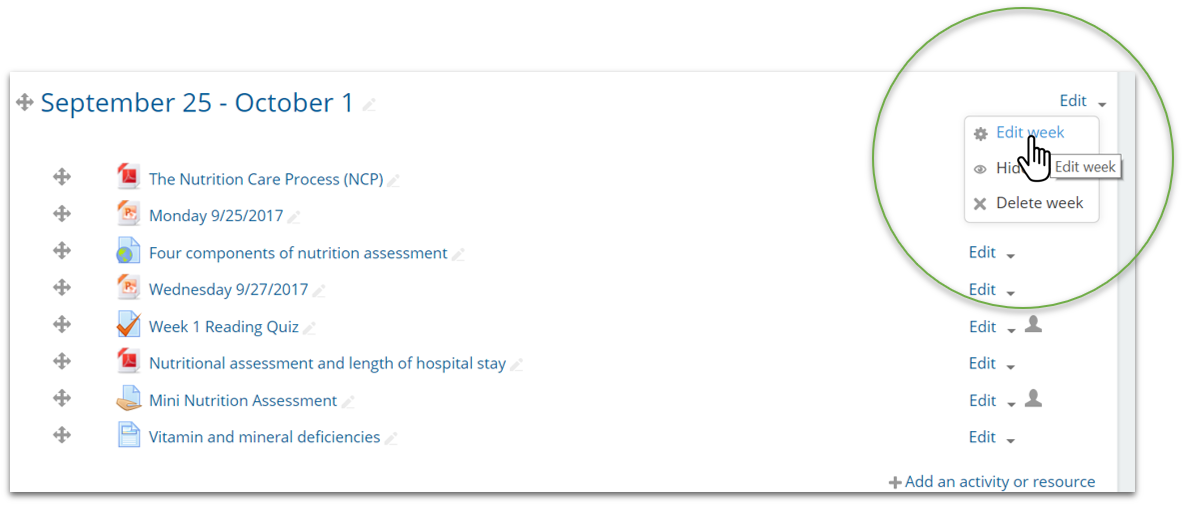
-
- In the "Section name" area, uncheck the "Use default section name" box and type in the dates as you want them to appear on your course page.

-
- In the "Summary" area, type in the description you want to appear on the main course page
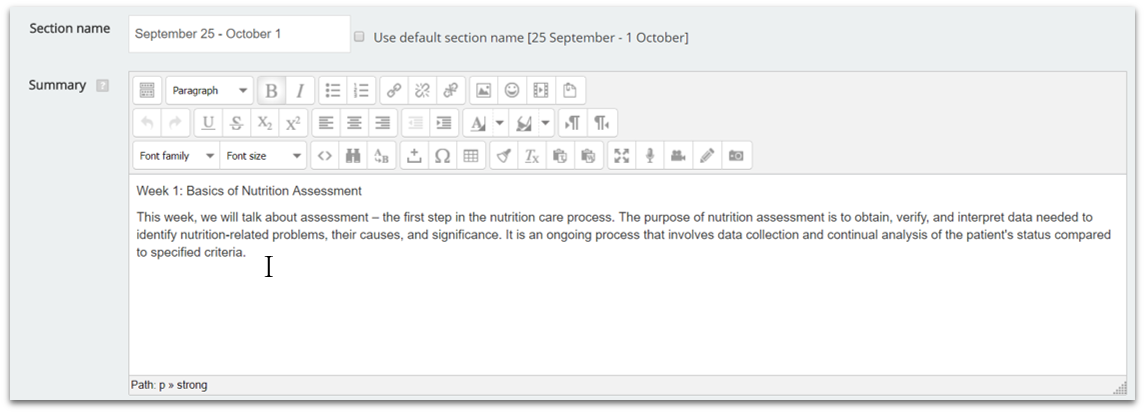
-
- Use the "Format" drop-down to increase the size of the week’s topic to make it stand out (I used Heading 4).
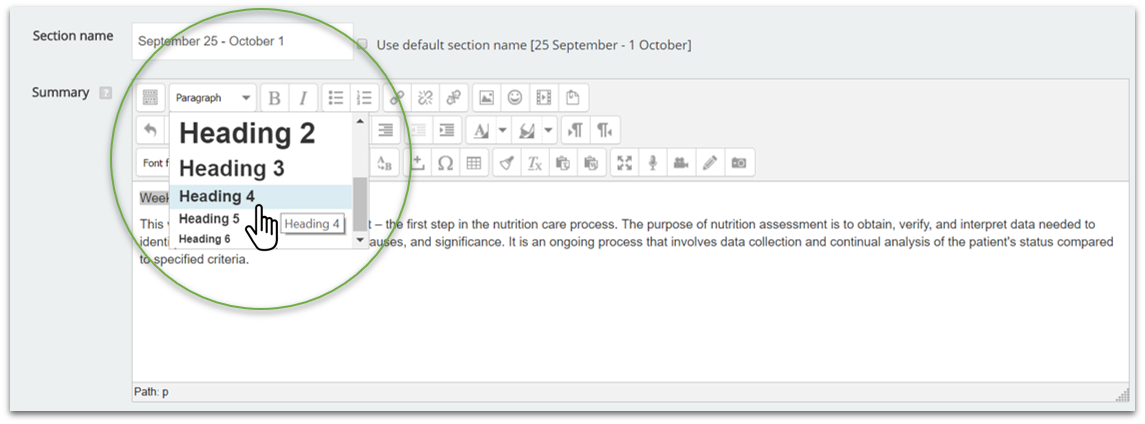
-
- Click Save changes.
Part
2
2
Add labels
-
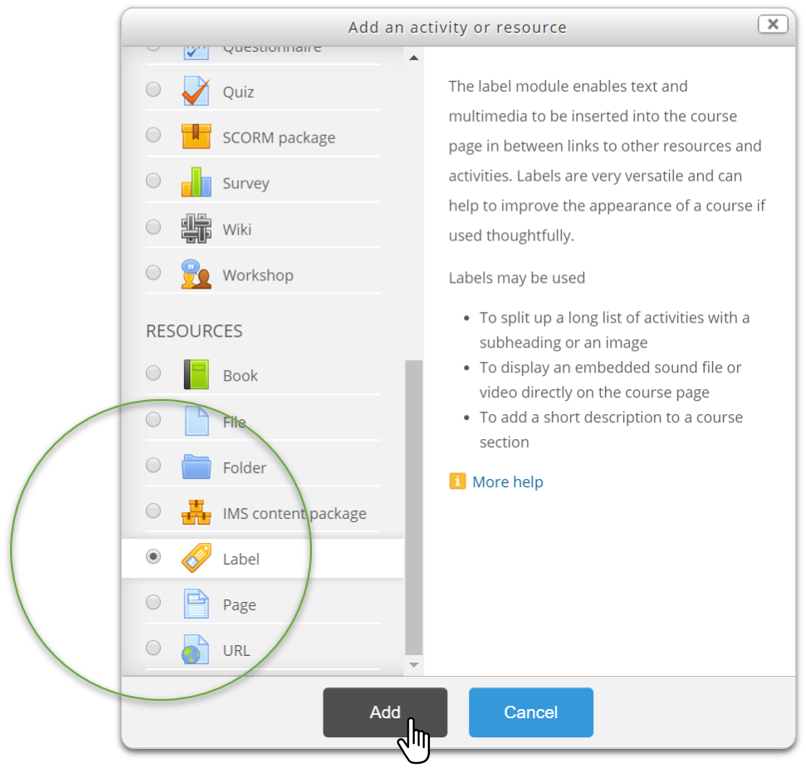
- Click Add an activity or resource.

-
- From the list of available resources, select Label and click Add.
-
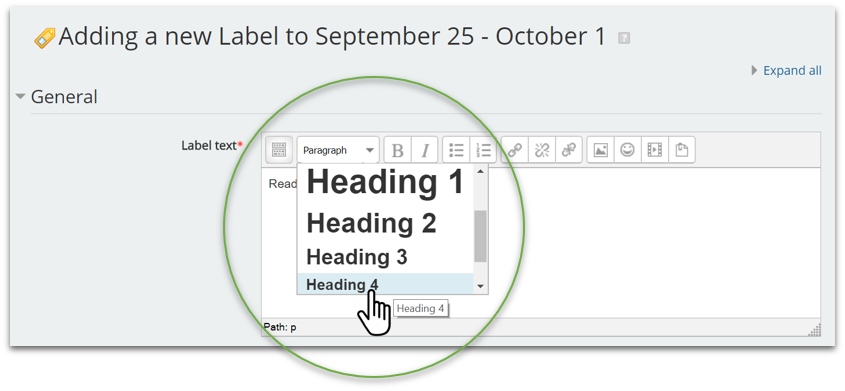
- In the "Label text" area, add the name of the label as you want it to appear on the main course page. You can use the "Format" drop-down to increase the size of the text (I used Heading 4).
- Click Save and return to course.
- Repeat the steps above to add more labels.
Part
3
3
Rearrange and indent content
-
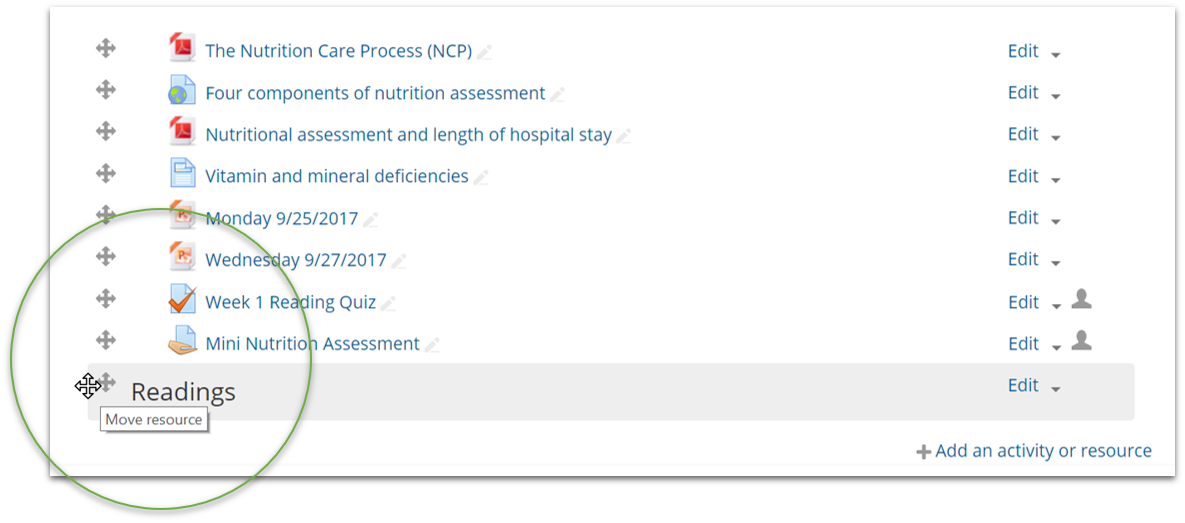
- Use the move tool to rearrange the different resources and activities.
-
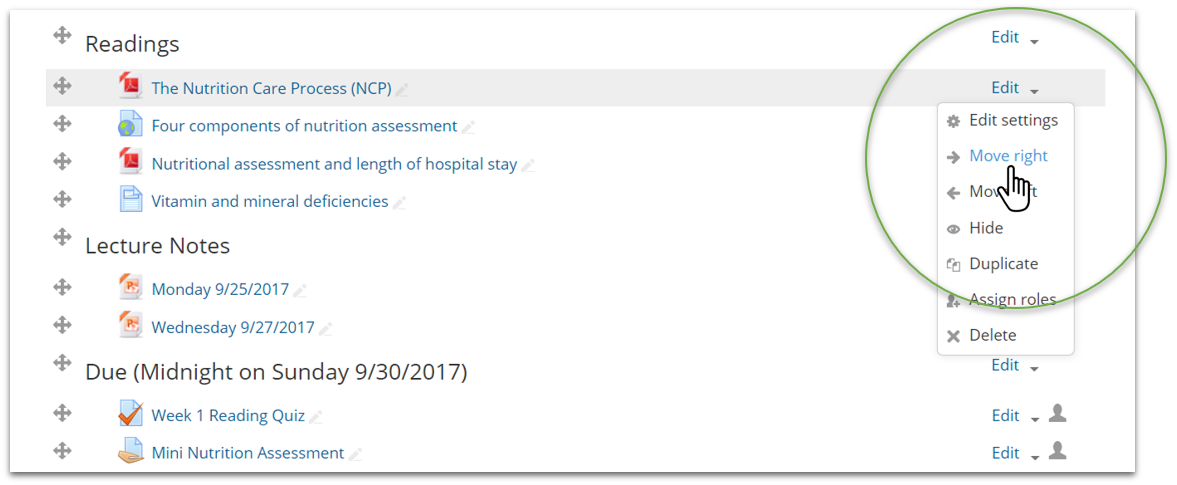
- Indent your activities and resources (except the labels) by clicking Move right from the "Edit" drop-down.
FAQs
No FAQs yet. Use the comment field below to ask questions.
Last Update: July 13, 2025
